vorssaint/vorssaint-utils is an open-source project on GitHub, mainly written in Swift. Free and open-source macOS menu bar toolkit. It currently holds 20,153 stars and 735 forks with 477 open issues, and was last pushed on 2026-09-20 (repository created 2026-06-12).
Project Overview
Git Homed tracks it on the Today's Trending board, currently at rank #23 with 228 new stars today.
GitHub Repository Details
Repository vorssaint/vorssaint-utils · default branch main · size 74689 KB · watchers 33 · source: GitHub REST API and repository README
README
Vorssaint
One menu bar icon doing the job of a dozen paid Mac apps.
Free, open source, and everything runs on your Mac.
Per app volume, a real system monitor, a better app switcher, window snapping, Dock previews, clipboard history, text snippets, a file shelf, an uninstaller. The utilities Mac users usually buy one by one, together behind a single menu bar icon, with no account, no telemetry and no subscription.
Install only what you use
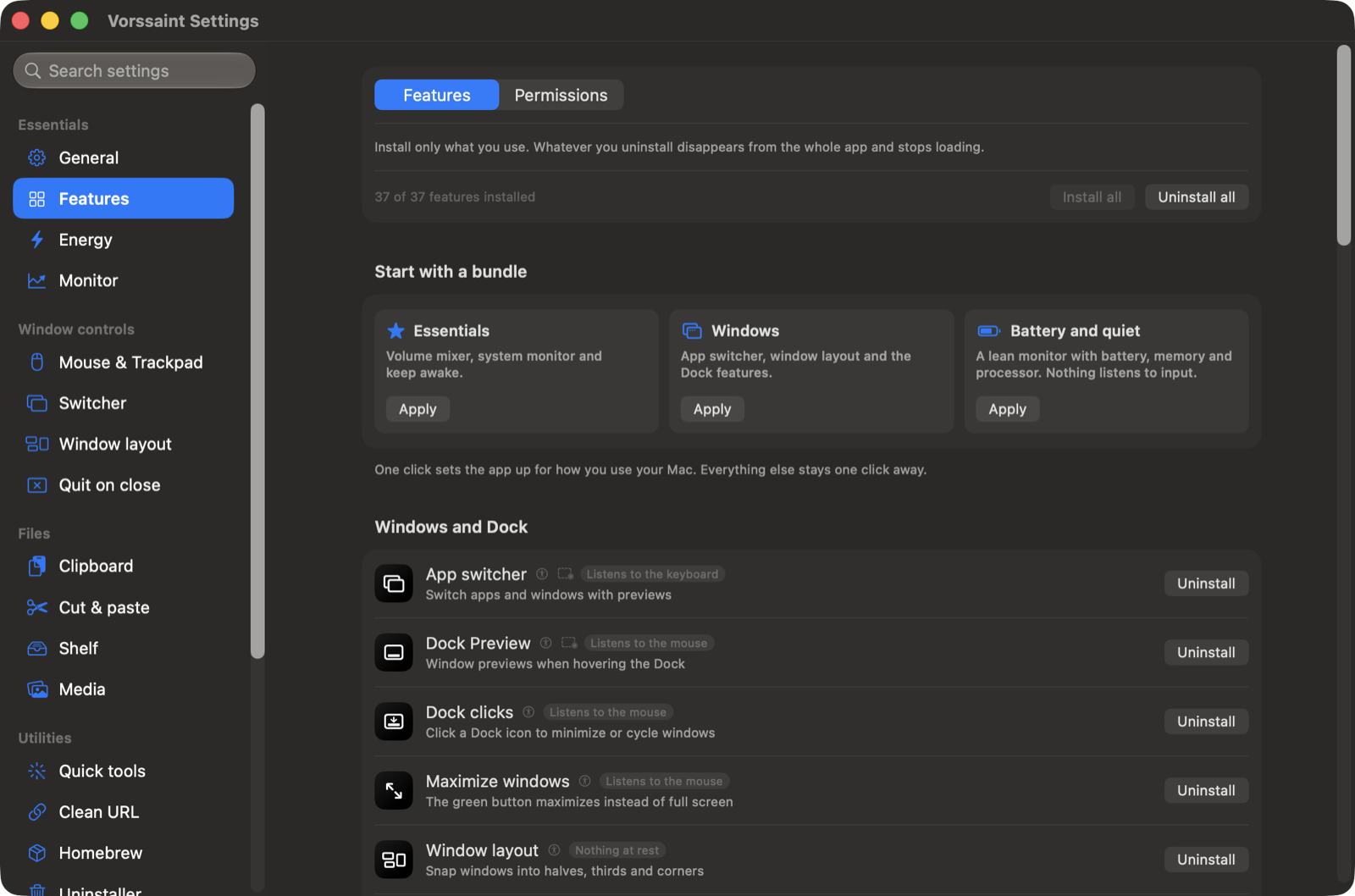
Nobody needs all of it, and Vorssaint is built around that. The Features page installs and uninstalls whole features: what you uninstall disappears from the entire app and stops loading, so it spends no CPU, memory or energy. Nothing is deleted, and installing again brings your old settings back.
First setup offers three one click bundles, Essentials, Windows, and Battery and quiet, plus a visual picker for choosing individual features. Only the permissions those choices need are requested next, and everything can be changed later in Settings. Every feature also wears an honest energy badge saying what it keeps alive while on.
The rest bends the same way: panel sections reorder and hide, the compact layout trades sections for tabs, settings export to a file and import on a new Mac, the app can stay light or dark apart from the Mac, and the whole app speaks more than a dozen languages.
Everything it does
Sound
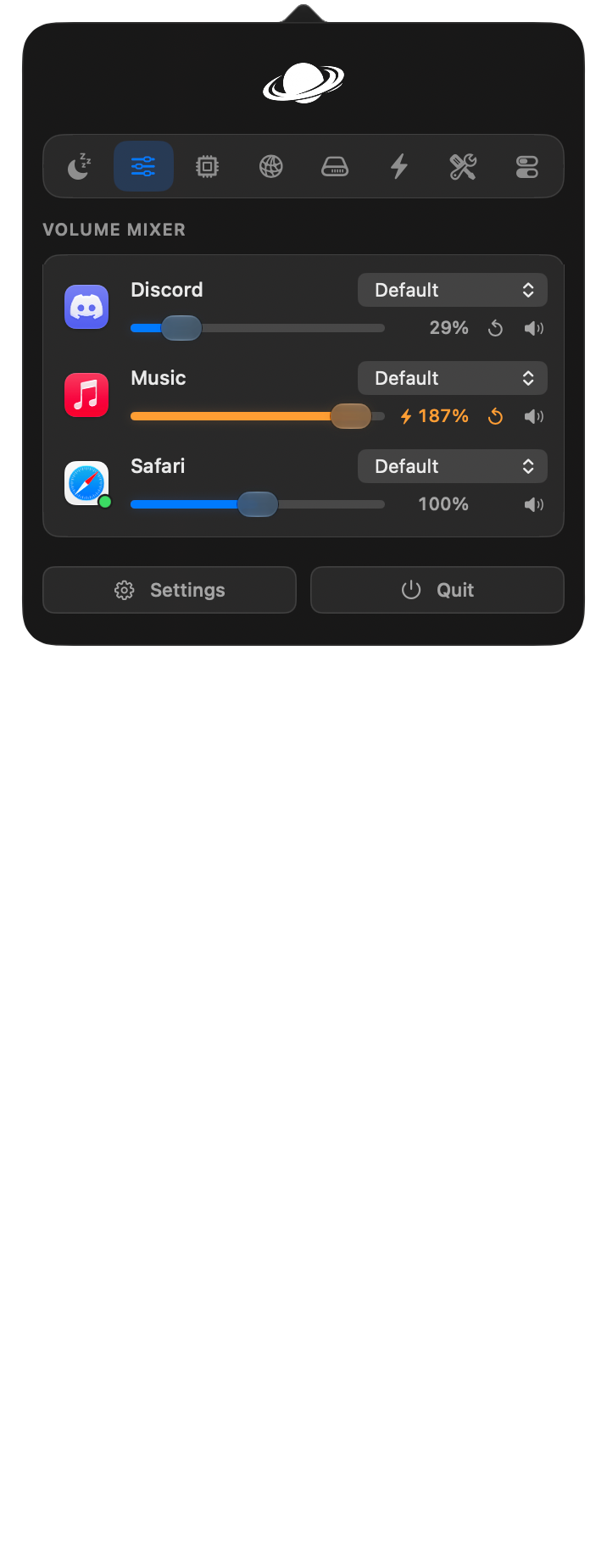
Volume mixer. Adjust the Mac's overall volume or slide any single app up or down, enter an exact percentage, and push a quiet one past 100 percent when a video is just too low. Send system sounds through another output, or hide the apps you never adjust to keep the list short. Pin favorites from each row’s menu and hold Command while dragging an app to reorder it; positions survive closing apps and travel with settings backups. No audio driver, no setup.
Per app output. Send your music to the speakers and a call to your headset at the same time.
Output switcher. Cycle between chosen outputs with one shortcut, and drop the volume automatically when headphones disconnect.
Microphone tools. Pin your favorite input so the Mac stops guessing, adjust its input volume in the mixer with an exact percentage on supported devices, and mute every microphone at once with a click or shortcut, whichever one an app is using. Input volume stays locked while microphone mute is active.
Music app blocker. Stops the Music app from bursting in when headphones connect. You can still open it yourself.
Know what your Mac is doing
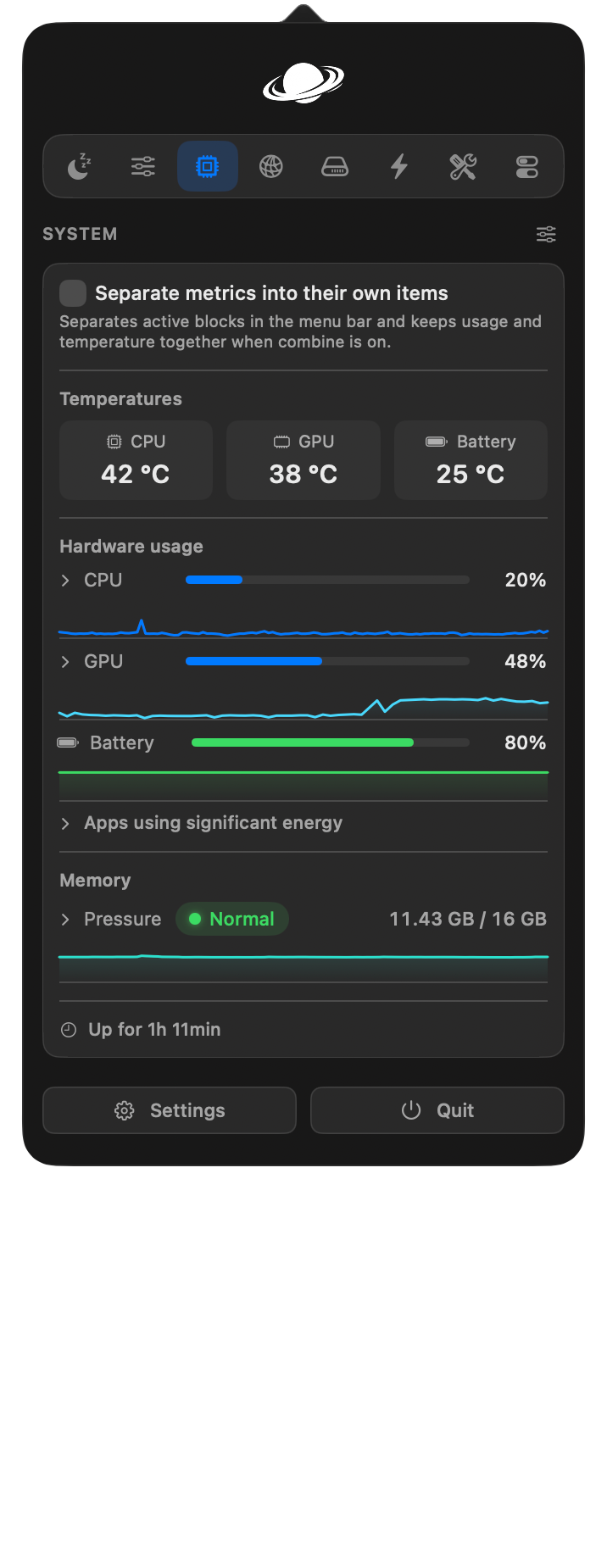
System monitor. CPU, GPU, memory, swap use and temperatures with history graphs, including a choice between total memory in use and memory held by apps, plus battery charge, temperature, health, time remaining, cycle count and power draw together in Power, an optional Fan Control beta with continuous manual speeds, custom temperature curves and live RPM, the apps burning energy right now and a shortcut to the Mac's full process inspector.
Menu bar readouts. Keep the readings you care about in the bar itself, with values or compact usage bars, including optional battery time remaining and fan speed, combined or as separate items.
Network. Live rates, session totals, the Mac's local IP address and a built in speed test.
Alerts. Optional notifications for sustained CPU load, high CPU or battery temperature, memory pressure, low disk space and low battery.
Windows and the Dock
App switcher. A richer take on pressing ⌘Tab, with adjustable live window thumbnails, minimized windows included, and more than one window per app. Simple mode keeps every window and its title without previews or screen capture, with optional grouping to one entry per app. Optionally press S to keep search open after releasing the switcher shortcut, or hide the shortcut hints below the large icon row. Press the window shortcut directly to move between windows of the app in front. Choose whether it opens on the screen under the pointer, the one with the menu bar or the one with the active window. Optionally show only windows on the display under the pointer; the switcher stays closed when that display has no windows. Set per-app rules to include windowless apps, keep them window-only or hide them. Choose apps where Vorssaint pauses both switcher and Dock thumbnail capture while they are in front. Minimal previews hide window titles, controls and decoration while keeping selection visible. Middle-click a preview to close that window.
Window layout. Snap the active window to halves, including a centered half-width placement, thirds, sixths, corners or center with configurable gaps between windows and screen edges, maximize it with or without a margin, or move it to the next or previous display, each with its own optional shortcut. Using the left or right shortcut again carries the window to the display on that side, landing on the half it came in through. Restore steps back through recent placements. Turn on edge snapping in Window Layout, choose its active edges and corners on the visual screen map, then drag a title bar there for a live preview. Hold chosen modifiers and drag anywhere to move it, then add Shift to resize. A mouse can also resize with the right button.
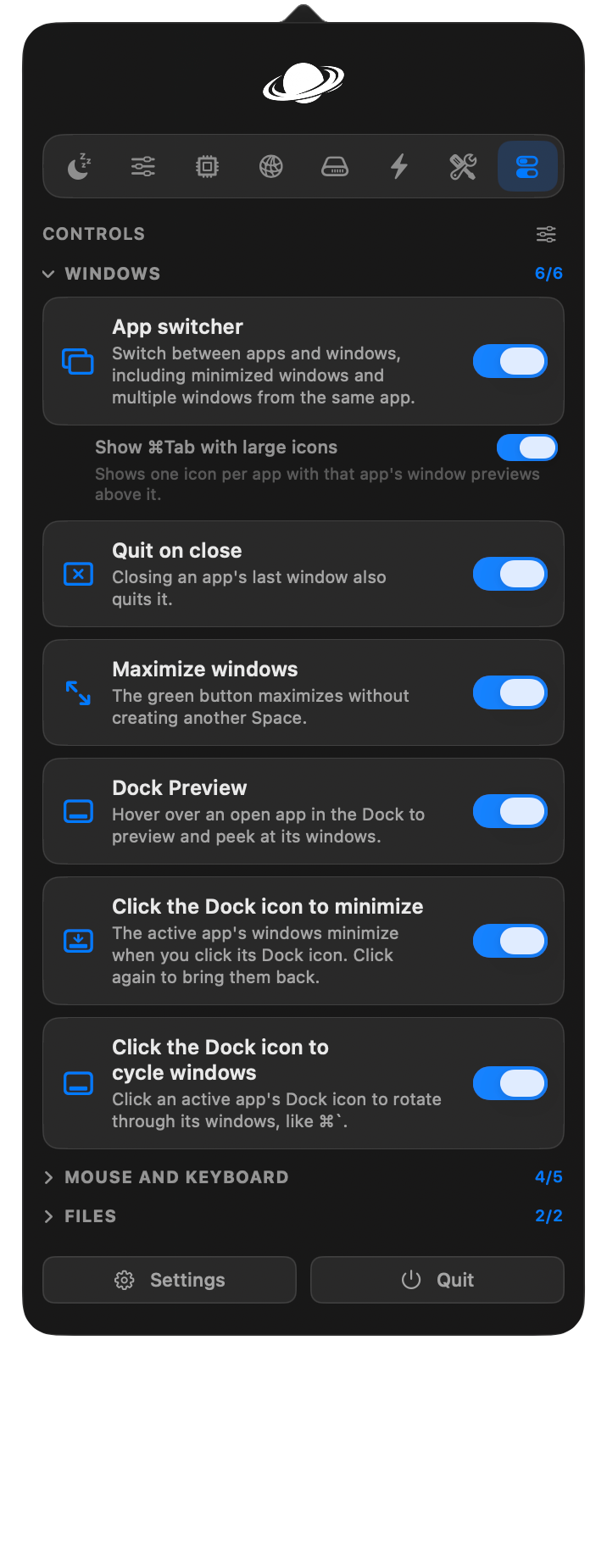
Dock Preview. Hover a Dock icon to see adjustable window thumbnails with clear titles from all desktops by default. Click one to switch to its desktop or drag it to move and snap the window. Turn on “Show only the current desktop” to limit previews. Middle-click closes only the pointed window, including in pinned previews. Optional minimal previews hide titles, controls and decoration. An experimental option under “More options” keeps the Dock visible until you leave or press a key; it may resize windows.
Dock clicks. Click the Dock icon of the active app to minimize its windows, hide the app, or cycle through its windows.
Maximize windows. The green button fills the screen without creating another Space, and puts the window back on the next click.
Quit on close. Apps you choose quit when their last window closes.
Quit and close protection. Protect ⌘Q and ⌘W with a hold, double press or extra modifier, independently and only for the apps you choose. With visual feedback enabled, a progress bar shows the remaining hold-to-confirm wait. Release the shortcut early or press Esc to cancel.
Keyboard and mouse
Text snippets. Type a short trigger anywhere and it becomes your text, expanded instantly or after a space, with clipboard variables plus date and time in any format you like, and an optional sound when a typed trigger expands. A searchable quick menu, organized into folders, types any snippet right at your cursor. When another app's secure input blocks typing, Settings names that app.
Smooth scrolling. Gives a mouse wheel a fluid glide with adjustable speed and response.
Pointer acceleration. Optionally disable acceleration for connected mice while preserving the previous system setting for restoration.
Focus follows mouse. Install it from Features to bring the window under the
pointer to the front after an adjustable pause. It waits while you drag or hold a
modifier key.
Scroll direction. Invert vertical and horizontal wheel movement separately without
touching the trackpad's natural scrolling.
Scroll sideways while holding a key. Turn the vertical mouse wheel into horizontal scrolling in any app while a chosen key is held, installable from Features.
Side buttons. The mouse Back and Forward buttons start meaning it, in Finder, browsers and compatible apps.
Mouse button shortcuts. Give any extra button or side-wheel direction a key combination of your choice, or hold a button and drag to switch Spaces, open Mission Control or show the current app's windows.
Middle click. A three finger press becomes a real middle click.
Apps to leave alone. Every feature above can name apps from anywhere on your Mac that drive themselves with the mouse, like 3D and design tools, and it steps aside in those.
Extra click filter. Ignore rapid accidental extra clicks from worn primary, secondary and middle mouse buttons without delaying normal clicks.
Key debounce. Filters the double letters a worn keyboard invents.
Super key. Hold Caps Lock or a right-side modifier key and it counts as the modifier combination you choose, so one key can drive your shortcuts. A tap on its own can switch input sources, switch capitals, press Escape, or do nothing. Choose apps that pause Super key while they are open, even in the background, so the selected key works normally until the last one quits. Keep the selected key at its default action in System Settings › Keyboard › Modifier Keys.
Keyboard shortcuts. Edit every installed feature's global shortcut from one categorized page, see what is active and use the shorter Super key combination when available. A field that records a macOS shortcut, such as ⌘⇧3, can offer to take it over while the app runs and its feature is on; macOS gets the key back otherwise. On supported Macs, enable optional keyboard backlight shortcuts under Mouse and keyboard › Keyboard light to adjust it one step at a time.
Clipboard, files and links
Clipboard history. Local history of text, images and files with pinned favorites, search, quick paste shortcuts and an on-demand preview where text can be selected or edited. It can also show the latest copy next to the menu bar icon, trimmed to a length you choose.
Auto clear clipboard. Empty the system clipboard a set time after you copy, and when the Mac sleeps, the display sleeps or the screen locks. Each trigger is optional, works with history off, and leaves your saved items untouched.
Paste as plain text. One shortcut pastes without fonts, colors or links, and the original stays on the clipboard.
Shelf. Park files, text and links near your cursor mid drag, or open it from a screen edge, then drop them where they belong later. Attachments dragged from other apps arrive as complete files with their original names. Share the files you parked anywhere the Mac can send them. Choose whether its close button clears every item or keeps them for later.
Finder shortcuts. ⌘X and ⌘V move files, an optional F2 shortcut renames the selection, and copied images can become PNG files with ⌘V.
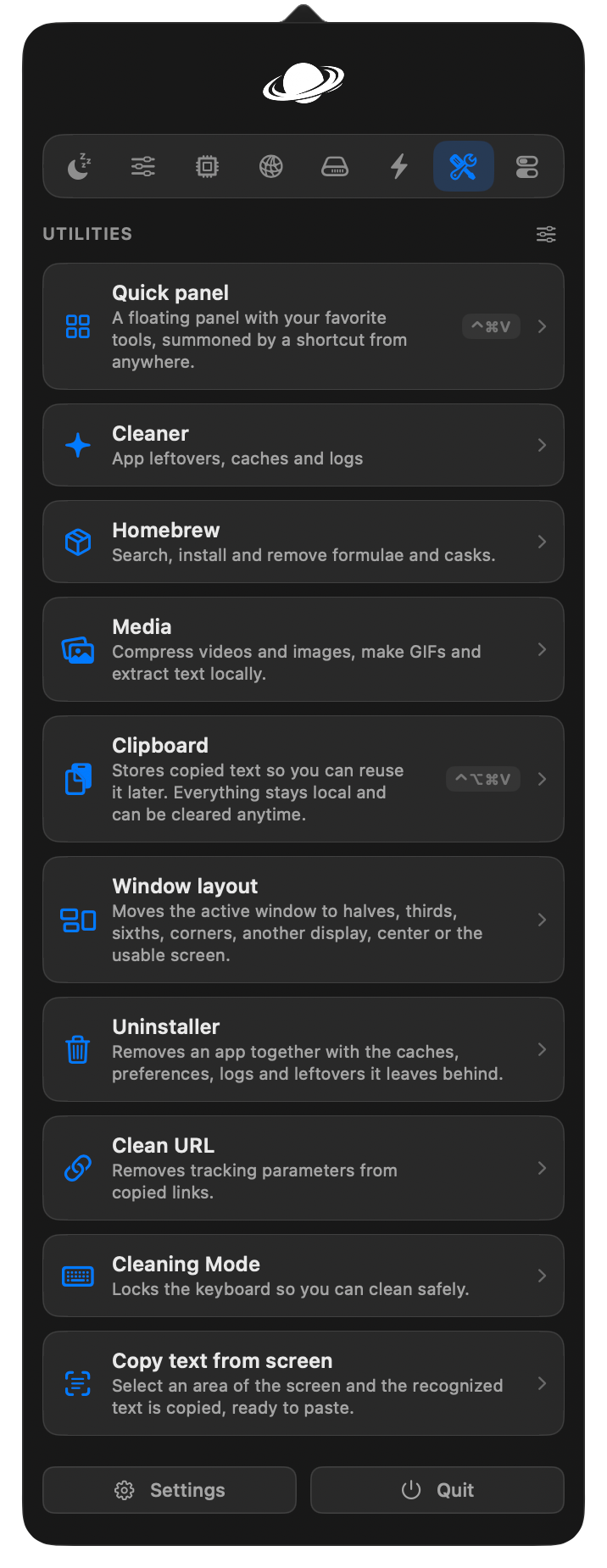
Clean URL. Strips tracking parameters and extra names you choose from copied links, on demand or automatically.
Disk image installer. When a mounted disk image contains one app, install it into Applications with one click and eject the image. Choose whether to move its download to Trash and show the installed app in Finder.
Everyday tools
Dynamic Island. An optional black home for music, controls, clipboard, captures, files and system details, including Macs without a camera cutout, where it recreates the same black cutout attached to the top edge and scaled to fit the menu bar. The expanded island is a wide strip with sideways cards, with spacious sizing by default and compact and custom options. Very short custom layouts scroll vertically where needed to keep controls reachable. Design floating shortcuts directly in the interactive preview: add, rename, remove and drag up to three buttons onto each side or below the island. The starting layout places Explore above Timer on the left, Settings above Volume mixer on the right, and Now Playing below. Buttons can open sections or run everyday controls; unavailable actions stay out of the chooser and the island, and saved layouts are preserved. Visual pages organize layout, content, activity and opening behavior. Hover activation defaults to 0.25 seconds and can be adjusted from 0.1 to 1 second under Behavior. Search the in-place section gallery by name or navigate with arrows and Return. Command-K opens the gallery; every section has a stable Option-Command shortcut shown on its card, and Control-Tab cycles through all available sections. Arrange sections and hide individual controls in settings. Controls place playback beside volume and brightness, with the mixer, Keep Awake, timer and calendar below as default shortcuts. Device choosers remain available in compact controls, and the mixer uses one fader per app. Capture, microphone and app-specific shortcuts remain customizable. The empty state stays quiet, and compact indicators give menu bar items priority unless you let them show over the menus, an option under At rest. Playing music is the default resting content, with nothing and battery also available. On screens without a camera cutout, the compact music strip shows the track title and, when there is room, the artist. Hover expands the island by default and responds sooner when the pointer enters or leaves; a preview or click-only opening remains available. An optional hidden mode reveals the island on hover and hides it again on exit, including resting indicators and passive alerts. Available Vorssaint updates have an Update button in the open island's header; the existing preview shows the release notes before downloading, and the resting island stays unchanged. Choose whether reopening restores the last page or opens a specific section; while the island is showing music, a timer, a download or a notification, opening it goes to that activity first. Click the top to open or close; after closing, hover waits until the pointer leaves and returns. Menu bar buttons also toggle their destination. Gestures start enabled and scroll down to open, scroll up over the top row to close, and swipe across music to change one track at a time; lists and sliders keep their scrolling. Keyboard navigation remains available, and trackpad feedback starts enabled. Volume, brightness and notification feedback expands horizontally beside the real or simulated camera; level indicators omit redundant titles. Calendar shows a week strip with appointment cards and an expandable month grid; taller layouts pair the month with a day-grouped agenda, calendar colors and an ongoing event highlight. Select a date to see its schedule or return to the next seven days. New visible system notifications appear briefly in Dynamic Island and can remain in a session inbox that clears on lock or disable. A banner waits while the pointer is over it, and hovering opens a message preview in place, with Open, Dismiss and a shortcut to the inbox. Click a banner to open its original notification; if it has already disappeared, the identified source app can still be opened. An optional setting dismisses the original system banner shortly after the island shows it; longer sounds may still be cut off. Music apps take priority over browser videos, keeping pause and resume tied to the selected music app. Music offers a seekable timeline when supported, synchronized lyrics with local file import and a per-track timing adjustment, and the player's real upcoming queue when exposed. The music bars can follow the player's actual sound, off by default and using the system audio recording permission. Online lyric lookup is a separate opt-in that sends the track title, artist, album and duration, never audio. Timers use an orange minute ruler with click, drag, scroll and keyboard adjustment, a large countdown and circular pause and cancel controls. The island’s optional haptic feedback gives a gentle tap as the selected minute changes. Remaining minutes sit close beside the camera, switching to seconds in the final minute. A stopwatch on the same page counts up with pause and cancel, showing minutes and seconds beside the camera until an hour passes. Pomodoro remembers focus and break durations, the long-break interval and a session goal, shows cycle progress and finishes after the last focus session. Timers and focus sessions stay accurate through sleep, offer explicit breaks and play a repeating sound for up to five minutes or until dismissed, with sound preferences kept in settings. Active downloads and the timer can share the compact strip. The camera mirror can open inside Dynamic Island from Tools or its shortcut and stops when closed or hidden. Accessory connection and low-battery alerts reuse the existing readings, and an optional keyboard light indicator joins volume and screen brightness feedback. Each new drag of compatible images or one video offers a choice between the shelf and media optimization, including when media is already open. Media follows its content height, and file actions do not pin the island automatically. File actions create separate ZIP archives or reuse the media tools for conversion and compression, preserving originals and returning results to the shelf. Downloads follow a folder you choose, showing real percentages when a total is available and an indeterminate state otherwise. Clipboard search stays visible with a pinned filter. Available app panels, tools, clipboard, capture controls and shelf open in the island by default, with independent options to use separate windows; capture controls open without initially dimming the desktop. The base stays black with optional Liquid Glass controls. It appears in captures by default, with an option to hide it.
Command Bar. One shortcut opens a field over whatever you are doing. Drag its mark to place it anywhere on a screen, or double-click the mark to put it back. Type a few letters to run any Vorssaint action, open an app, switch to a window, insert a snippet, paste from your clipboard history at the cursor, and it reaches into the app you are using to run any command from its menus, showing that command's own shortcut. It answers sums, including scientific functions and brackets you have not closed yet, conversions, dates and questions about your Mac as you type, with Tab continuing a calculation from its answer, opens a web address you enter, and acts on the text you already have selected. Saved shortcuts can also run a local script and show its output as you type. Name a few folders and it finds files in them by name too, through the Mac's own search, without building its own index or looking beyond the folders you choose. Apps also answer to alternate names known by macOS, and the Mac's own Settings panes are one row away. Manage app shortcuts from Keyboard shortcuts or Command Bar settings with a searchable app list, editable aliases, pinned favorites and shortcut recording in each row. App shortcuts also work before the bar first opens after launch. Press ⌘K on an app to quit, restart, force quit or send it to the Uninstaller, and on any row to name it, pin it, hide it or give it a shortcut of its own; ⌘Return shows an app, a folder or a file where it lives. Bug reports and feature ideas can also be sent from here, with every technical detail shown before you choose whether to include it. Start with a colon or open the Emoji category to find emoji by name and familiar English terms. Choose a default skin tone in Command Bar settings, or use an emoji’s actions to insert another tone just once. It tolerates short typos and remembers search choices across launches without saving the text you type. Clear all learned choices in Settings or forget one result from its actions.
Quick panel. ⌃⌘V opens a small floating palette with your favorite tools one key away.
Quick toggles. One-click system actions in their own panel tab: switch light and dark mode, toggle the keyboard light, empty the Trash, eject every disk except drives you exclude in Settings, show hidden files, hide desktop icons, lock the screen and more.
Radial menu. Hold a shortcut, or any extra mouse button, and a wheel of your favorite actions opens around the pointer: apps, files, links, key combos, media controls, quick toggles and Vorssaint tools, with submenus for more. Point and release to run one. Custom profiles let you switch between different wheel layouts, color themes, shortcuts and mouse triggers, and website links can fetch their actual icons on demand.
Screen capture. Screenshots, screen recordings, copying text from the screen and picking a color share one selector, and each tool's own shortcut opens it already on that tool, ready to switch. Each tool can hide the mode menu when opened through its keyboard shortcut, while capture buttons keep it visible. A pixel-grid magnifier

 →
→










 →
→ →
→ →
→ →
→ →
→ →
→ →
→