1
 →

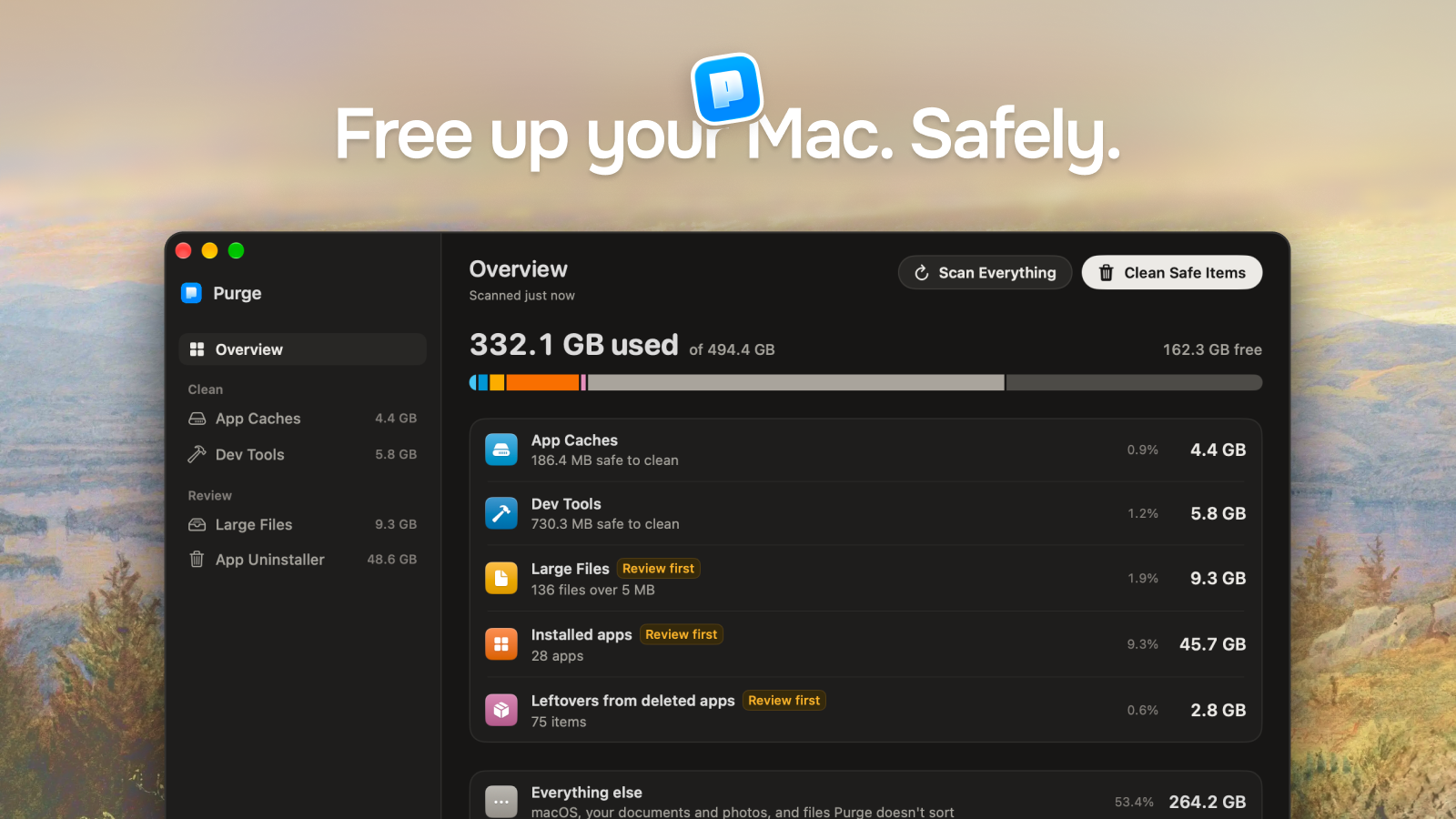
Free up your Mac. Safely. A free, open-source native Mac app that clears the cache and junk your Mac piles up on its own. Files go to the Trash by default, so you can put them back.
jithin-sabu/purge-app is an open-source project on GitHub, mainly written in Swift. Free up your Mac. Safely. A free, open-source native Mac app that clears the cache and junk your Mac piles up on its own. It currently holds 1,769 stars and 97 forks with 21 open issues, and was last pushed on 2026-11-08 (repository created 2026-05-11).
Git Homed tracks it on the Today's Trending board, currently at rank #54 with 116 new stars today.

Free up your Mac. Safely.
English | 简体中文
A free, open-source native Mac app that clears the cache and junk your Mac piles up on its own.
Files go to the Trash by default, so you can put them back.
Download · Install guide · Build from source · Security
---
Your Mac quietly fills up with cache and junk you never see and never asked for. Purge finds it, marks what is safe, and clears it in one click.
[!NOTE]
Files and folders go to the Trash by default, and Purge never empties the Trash, so you can put them back until you empty it yourself. Removed for good: iOS simulators and simulator runtimes, through Xcode'ssimctl; Time Machine local snapshots, throughtmutil(Purge keeps the newest and the one from your last backup); the Apple Intelligence models on macOS 27, which Apple's asset service releases and Purge can download again; command-line tools and Homebrew cask apps that their package manager uninstalls, when you choose that in the review sheet. Docker Desktop's folder goes to the Trash. Purge does not rundocker system prune.
You do not need to understand any of it to use it. But if you ever want to check, every item carries a plain-language explanation and a safety label, so nothing gets touched that you cannot see and verify first.
---
Scans ~/Library/Caches, sandbox container caches, and common system junk:
Three sections in one view:
node_modules, Python virtual environments, Rust target, Flutter build output, Xcode Pods, Android .gradle, and other artifacts grouped by projectnode_modules or target. A project in use right now, with a terminal or dev server running inside it or a git command in progress, never appears.
Git worktrees made by AI coding tools (Cursor, Codex, Conductor, T3 Code, and Claude Code) appear under Orphaned Git Worktrees only once their repository no longer lists them. A worktree Git still uses never appears however old it is, and neither does one a terminal or agent is working inside.
Find space-hogging personal files without digging through folders:
~/Parallels and ~/Virtual Machines.localized for virtual machines only, and iCloud Drive's own folder for files you can keep only in iCloud~/Documents pointing to another drive, is scanned where the link leads when that is inside your home folder or on a drive under /Volumes, on a disk attached to your Mac. Its files are listed by their real path and go to that drive's Trash. A link anywhere else, such as into ~/Library/CloudStorage, to a network share, or to a whole drive or a copy of a Mac, is not followed, and the scan says where it leads. Links inside the folders are never followednode_modules, Pods, DerivedData and build output. Deleting a single file out of a dependency tree only breaks the install, so those belong in Dev Tools, which removes them a folder at a timeSome big files carry a label that says what they are. Hover it for the full explanation.
.ipsw, often 15 to 25 GB. It's only needed to set up a Mac, a device, or a virtual machine..pvm), UTM (.utm), or VMware Fusion (.vmwarevm) bundle. It's one row and goes to the Trash whole, never a disk file from inside it. If the app is still installed, the label says to remove the VM there, since the app keeps its own list. A VM whose app is open, or that holds a lock file, stays off the list until you quit the app..crdownload, .part, and Parallels' .prlupd-part files, and Safari's .download bundle when it sits directly in Downloads.Downloaded models are often the largest files on a Mac and are easy to forget. They appear in Large Files under the AI Models category, one row per model, named the way you installed it, with the app or library that downloaded it as the location. Purge knows the stores of Ollama, LM Studio, the Hugging Face Hub cache (~/.cache/huggingface/hub, with HF_HOME and HF_HUB_CACHE honoured), swift-transformers, apps that keep models under ~/Library/Caches/huggingface, PyTorch Hub, Whisper, GPT4All, Jan, DiffusionBee and Draw Things. Weight files over 100 MB in ~/Library/Caches, ~/Library/Application Support and ~/.cache that belong to no known store are listed too, by the folder they sit in, so you can tell which app downloaded them.
Purge understands Ollama's content-addressed storage, so a model's size counts only the bytes that would actually be reclaimed rather than blobs shared with another model. A Hugging Face model is its whole cache folder, so a blob two snapshots share is counted once and never removed from under the other. Models always go to the Trash and are never part of Clean Safe Items or a scheduled clean. When an app keeps its own list of installed models that Purge can't update, the row says the app may still show the model as installed.
Dragging an app to the Trash leaves most of it behind: caches, preferences, containers, saved state, logs, and login helpers pile up on disk. The Uninstaller removes the app and those leftovers in one pass.
Purge assigns a safety label to every item it recognizes:
| Label | Meaning | |-------|---------| | ✅ Safe to Clean | Known cache or rebuildable artifact, safe to remove | | ⚠️ Check First | May be safe, but could cause inconvenience |
Filter with All, Safe to Clean, or Check First (⌥⌘1–⌥⌘3). Sort by size, date modified, or name.
Unidentified folders are left out of the list entirely. Purge only shows what it knows about.
The labels and explanations are there to be checked, not read cover to cover. Select the safe items and clean them, or open the reasoning behind any single row first. Either way is fine.
simctl. Time Machine local snapshots are removed for good through tmutil; Purge keeps the newest and the one from your last backup. The Apple Intelligence models are released through Apple's asset service and can be downloaded again. Tools and cask apps a package manager installed are removed by that manager's own uninstall, permanently, when you pick that in the review sheet| Shortcut | Action | |----------|--------| | ⌘R | Scan the current tab (Scan Everything on the Overview) | | ⇧⌘R | Scan Everything, from any tab | | ⌘1–⌘5 | Go to Overview, App Caches, Dev Tools, Large Files, or App Uninstaller | | ⌥⌘1–⌥⌘3 | Filter by All, Safe to Clean, or Check First | | ⌘F | Search on Large Files and App Uninstaller |
---
---
There are two ways to install Purge: with Homebrew if you live in the terminal, or by downloading the app directly. Both land in the same place.
brew install --cask purge
This installs Purge from the official Homebrew cask, and Homebrew verifies the download's checksum for you automatically.
The steps below walk through the direct download.
Click the download link above and download the .dmg.
[!TIP]
Since Purge deletes files, verifying the checksum confirms your download is byte-for-byte the one that was published, with nothing altered in transit.
Each release includes a matching .dmg.sha256 checksum file. Download both the .dmg and its .dmg.sha256 file into the same folder, then in Terminal:
cd ~/Downloads
shasum -a 256 -c Purgev*.dmg.sha256
A result ending in OK means the file matches the published release.
Open the .dmg and drag Purge to your Applications folder.
Double-click Purge to open it. Purge is notarized by Apple, so it opens normally with no extra steps.
Purge needs Full Disk Access to scan your cache folders.
1. Click Open Privacy Settings inside the app 2. Find Purge in the list 3. Turn on the toggle next to Purge 4. Come back to the app and click I've granted access
---
Purge updates itself in place. Once a day it checks for a new version, and when one is available the update window appears with the release notes. Choose Install Update and Purge downloads it, verifies its signature, installs it, and relaunches. You don't need to visit the release page or drag anything.
By default nothing is installed without your confirmation. You can also check whenever you like from the About screen, and if you'd rather Purge didn't check on its own, turn off Check for updates automatically in Settings → Updates.
If you'd rather not be asked, turn on Download and install updates automatically in the same place, or tick the matching box in the update window. New versions then download in the background and install the next time Purge quits. Once one is ready, Restart to Update in the Purge menu, the menu bar menu or the About screen installs it straight away. That helps if you keep Purge in the menu bar and rarely quit it.
Updates are delivered through Sparkle, the standard update framework for Mac apps outside the App Store. Each update is signed with a key that lives only on the developer's machine, and Purge refuses any download that doesn't carry a matching signature.
If you installed through Homebrew, you can update from the terminal instead:
brew upgrade --cask purge
Either route is fine. Your settings, cleaning schedule, and history are kept whichever way you update; they live separately from the app. You won't need to grant Full Disk Access again either, since the permission stays with Purge.
You can also browse past versions on the releases page anytime.
---
Choose Uninstall Purge… in the Purge menu, or Settings → Uninstall → Uninstall…. Purge lists what it runs in the background on your Mac (the deleted-app watcher, the admin helper, the Finder right-click item, the cleanup reminder and launch at login), turns each one off and checks it really stopped, then moves itself to the Trash and quits.
Your settings and cleaning history stay on your Mac, so a reinstall picks up where you left off. Tick Also move settings and history to the Trash to move them too. Nothing is deleted permanently; you empty the Trash when you're ready.
macOS doesn't let an app remove its own Full Disk Access. If Purge had it, the last screen offers Quit and Open Full Disk Access. In System Settings, select Purge and click the minus button.
Already dragged Purge to the Trash? Download it again, open it, and choose Uninstall Purge…, so nothing it ran keeps running. To check nothing is left, Purge should be gone from System Settings → General → Login Items & Extensions, and this should print nothing:
pgrep -fl io.getpurge
---
Prefer to build Purge yourself instead of downloading the release? Here is how.
@concurrent, which need Xcode 26; earlier versions won't build itgit clone https://github.com/jithin-sabu/purge-app.git
cd purge-app
Open the project in Xcode and run:
open purge.xcodeproj
Then select the purge scheme and press ⌘R.
Or build straight from the command line:
# Build a Debug app
xcodebuild -project purge.xcodeproj -scheme purge -configuration Debug build
Build a Release app
xcodebuild -project purge.xcodeproj -scheme purge -configuration Release build
The built Purge.app is written under Xcode's DerivedData folder (the build output ends with its path).
The app cache icons are generated from simple-icons. To rebuild them:
npm install
npm run generate:icons
xcodebuild test -project purge.xcodeproj -scheme purge -destination 'platform=macOS' CODE_SIGN_IDENTITY="" CODE_SIGNING_REQUIRED=NO CODE_SIGNING_ALLOWED=NO
The signing flags matter: without a development certificate on the machine, the test build fails before a single test runs. Continuous integration builds the same way.
---
Purge runs entirely on your Mac. Scans, explanations, manual overrides, and cleanup history stay in local Appl
→ →
 →
 →
 →
 →
 →
 →